Account
Your account
Tap your name at the top of any tab.
Everything about you rather than about a trip lives here:
- Your plan, and what it includes
- Getting paid back — your payment details
- Your expense reports
- Help and support
- Fair usage limits, and how much of them you've used
- Your password and sessions
- Emails from us
- Deleting your account


Your plan
Free covers trips, friends, expenses, splitting every way, balances and settling up. That's a whole holiday, start to finish, without paying anything.
Pro adds receipt scanning, budgets, categories, reports, more than two currencies per trip, and a live rate on every expense.
Anything needing Pro is marked PRO in this manual.
Fair usage
Some things have limits so as not to impact the service for everyone else:
| Free | Pro | |
|---|---|---|
| Receipt photos a day | 10 | Unlimited |
| Receipt scans a month | 50 | 500 |
You can see how much you've used on this screen. You'll be told when you're getting close — nothing stops without warning.
Attaching a receipt photo and scanning one are different things. Only scanning counts toward the monthly figure.
Getting paid back
Add your payment details and anyone who owes you gets a Pay button next to your name in Balances and can then send you money using those details via one of the Payment providers listed by Splitiz.
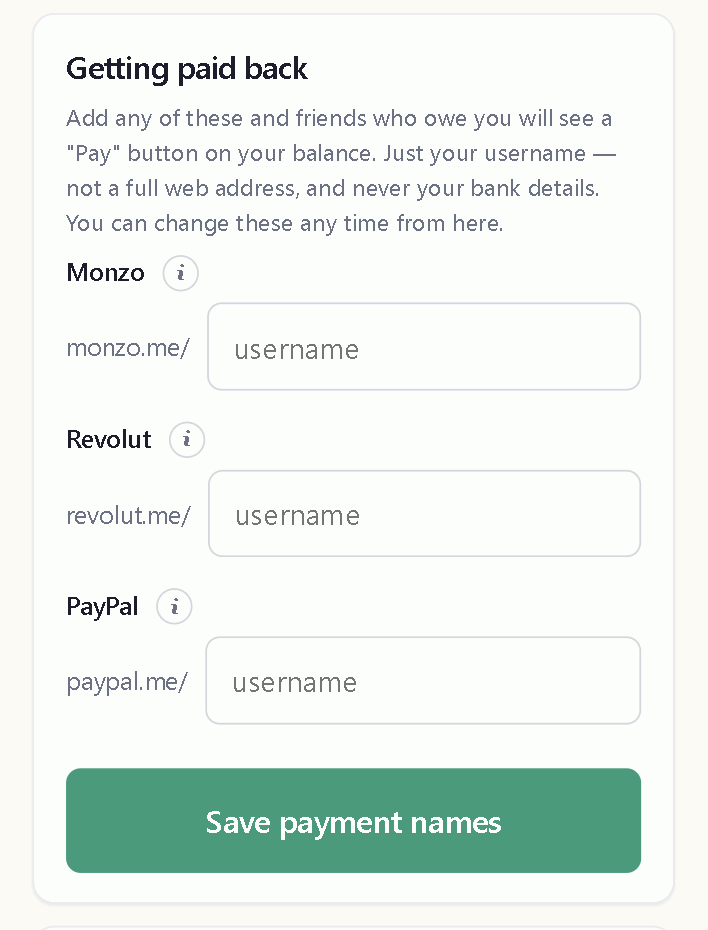
On your account screen, open Getting paid back and fill in whichever you use:
- Monzo — your Monzo.me username
- Revolut — your Revolut.me username
- PayPal — your PayPal.Me name
Use the username, not a web address
Enter just your username as defined by your payment provider - alexsmith, not paypal.me/alexsmith and not your email address.
Splitiz checks as you type and tells you if it doesn't look right.
Your PayPal.Me name is the one you create at paypal.me — it isn't your PayPal email address. The two are easy to confuse.
What happens when someone pays you
Anyone who owes you sees a Pay button next to your name on their Balances tab. Tapping it opens your Monzo, Revolut or PayPal page — so they don't have to ask you for anything or type your details in.
With PayPal the amount is filled in too. With Monzo and Revolut they type the amount themselves, because those links don't pass the amount to those payment providers.
The payment happens in that payment proviers' app, not in Splitiz. Splitiz can't see that money moved, so they must come back and tap I've paid to record it — that's what updates your balance.
No payment name saved? They'll be told, and offered the chance to add one for you — handy if you told them your Monzo name in person.
Splitiz never handles the money
No wallet, no card details, no payment taken through the app. These are links to your own banking apps and nothing more.
Leaving the payment names blank
Perfectly fine. People just settle with you however you already arrange it — cash, a bank transfer from their banking app. The other person simply won't get a shortcut button to make a payment to you directly through one of the payment providers listed by Splitiz.
Recording it
A payment still has to be recorded in Splitiz afterwards. Tapping Pay opens your bank; it doesn't tell Splitiz the money arrived. See Settling up.
Asking for help
Under Help and support on your account screen, tap Ask a new question.
Write what's happened and send it. You'll get a reply in the app, and an email letting you know there's a reply waiting.
Where the answers go
The conversation stays on your account screen. Ongoing questions are at the top, answered ones underneath, and a 🔔 appears next to your name when there's a reply you haven't read.
Everything stays in one place, so you never have to hunt through email for what somebody told you last week.
Attach a screenshot
You can attach one picture per message. A screenshot of what you're looking at can help Splitiz support understand what's happening — much better than trying to describe a screen in words.
Send the screen you're stuck on, not the error you're seeing afterwards. The context is usually what's needed.
What we can see
The screen you were on, your browser, the app version and your plan — collected automatically so we don't have to ask. Nothing else.
Replying later
Answer a question that's already been resolved and it reopens. You don't need to start a new one to say "that didn't work".
Your password and sessions
Changing your password
On your account screen, open Change password. You'll need your current one.
Forgotten it
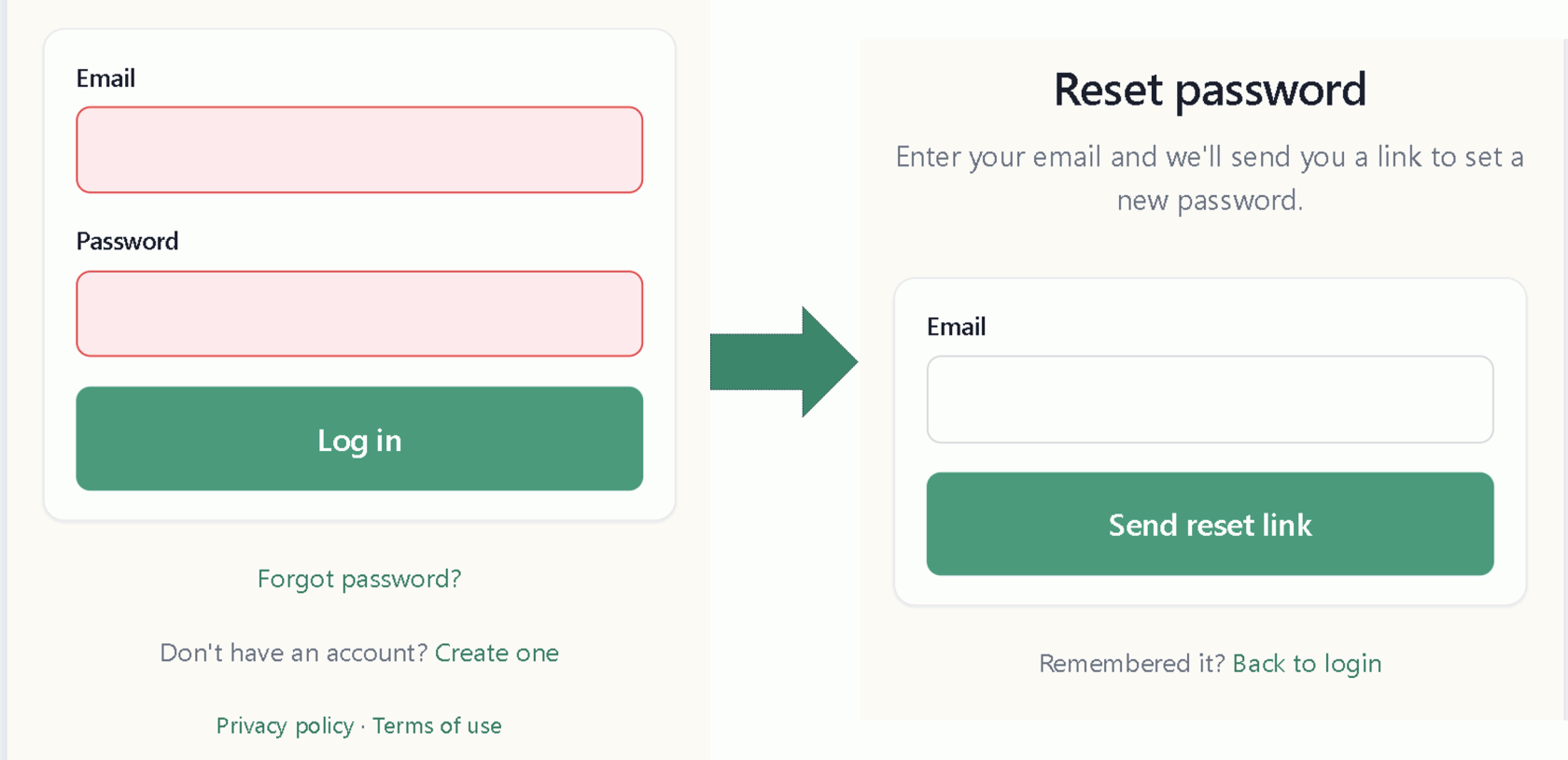
From the login screen, tap Forgotten your password? and we'll email you a link. The link lasts a short while, so use it when it arrives rather than tomorrow.
Signed in somewhere you shouldn't be
Log out of all devices ends every Splitiz session everywhere — an old phone, a browser you forgot about, a session left open on someone else's computer.
You'll be signed out here too and will need your password again.
Do this if you've lost a phone, or if you've ever signed in on a computer that isn't yours.
Why the home-screen app asks you to sign in again
On iPhone, the app you add to your home screen keeps its own separate sign-in from Safari. So the first time you open the new icon you'll be asked once more.
That's normal, it's iOS rather than Splitiz, and it'll remember you afterwards.
Logging out
The Log out button is at the top of the Trips tab.
Splitiz checks the sign-out actually worked rather than assuming it. If it can't reach the server it tells you so, instead of leaving you thinking you're signed out when you aren't.
Emails, and who sees what
Emails from us
One switch, under Emails from us: Email me occasional money off deals, and tips about Splitiz.
Turn it off and those emails stop. You'll still get the emails you actually need — trip invites, password resets, a reply to a support question, and anything about your account. Those aren't marketing and can't be switched off.
Who can see your trips
Only the people you invite. There's no public directory, no search, and no way to stumble across a trip you're not in.
An invite link is the only way in, it lasts 14 days, and you can replace it at any time. See Invite links.
What stays private even inside a shared trip
- Your budget. Nobody else in the trip can see it, or that you've set one.
- Your reports. They're on your account, not the trip's.
- Your payment details show as a Pay button, not as numbers on a screen.
An invite link in a screenshot is a working key to that trip. Crop it out before you share a picture of your screen.
Your friends don't need accounts
You can run a whole holiday for six people when only you have the app. Friends you add by name are just names until somebody claims one.
Splitiz never takes a payment
No wallet, no card details, no money moving through the app. Settling up hands you to your own banking app and stops there.
Deleting your account
At the bottom of your account screen: Delete my account.
What happens
Your account, your trips, your expenses and your receipt photos are removed. This can't be undone and there's no grace period.
Export anything you want to keep first. A report is a snapshot and survives — see Making a report.
Trips you share with other people
Think about this before you go.
If you've been keeping the books for a group, deleting your account takes the trip's history with it. Tell the others first, and export a report for them — it's the difference between a tidy exit and six people losing a fortnight of records.
Just want out of one trip?
You don't have to delete everything. Leaving a single trip keeps your account and everything else intact — see Leaving a trip.
Just want the emails to stop?
Turn off Emails from us instead. See Emails, and who sees what.