Trips
Creating a trip
Go to Trips → New trip.
Make a trip for each holiday, house share or group. Everything inside a trip — the people, the currencies, the expenses — it all stays in that trip.
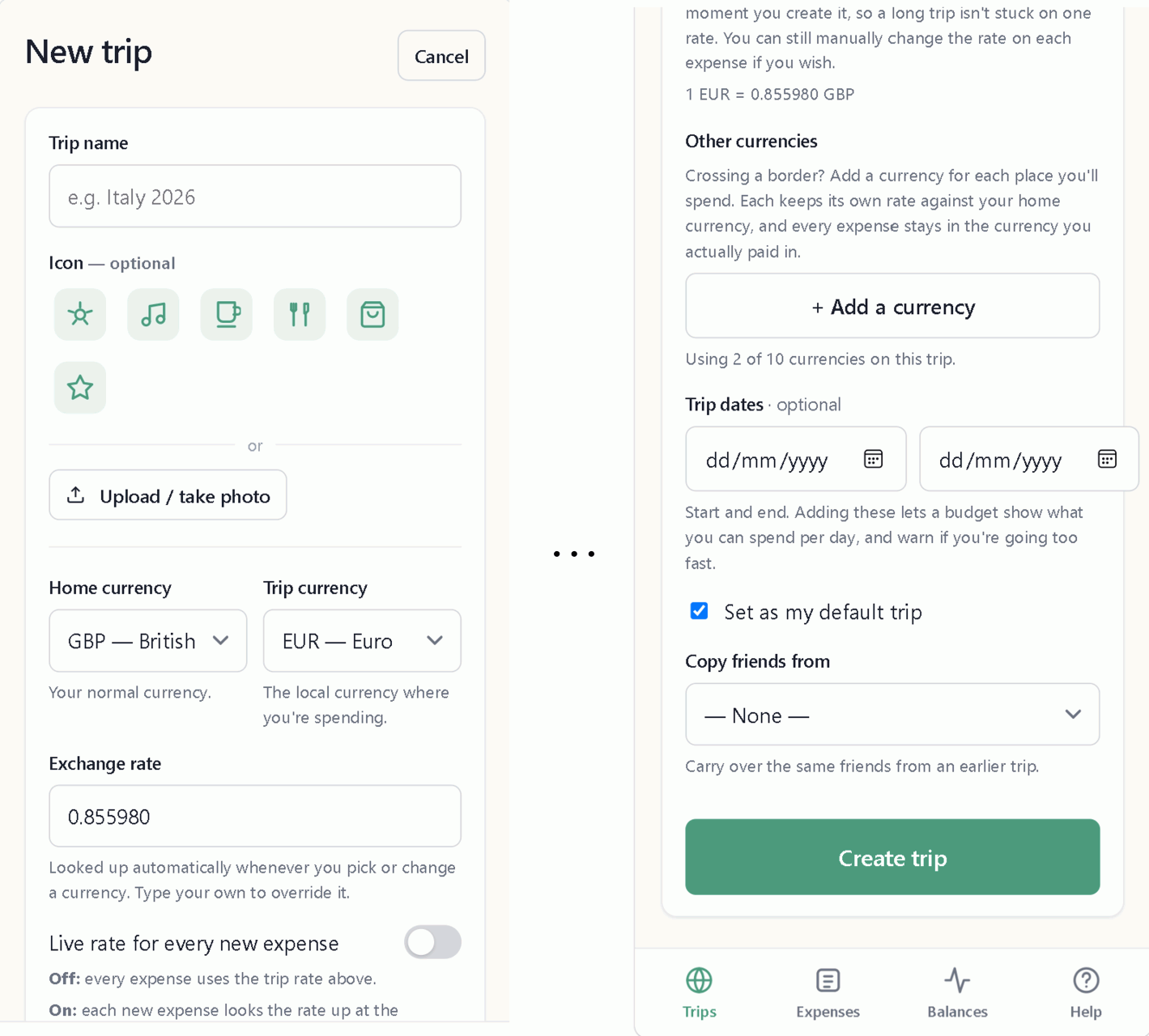
Filling in the form
Trip name — the only thing you have to fill in. "Spain 2026", "Flat 4", "Ski trip".
Icon or photo — pick one of the six icons or upload your own photo. Change it whenever you like.
Home currency — the one you think in. GBP for most people who live in the UK.
Trip currency — where you're spending. EUR for Spain, USD for New York. When you create a new expense it will set to this currency.
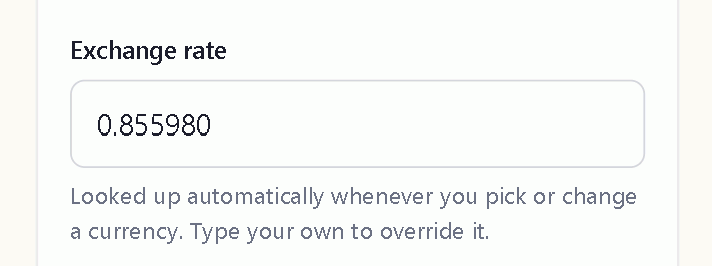
Exchange rate — automatically filled in for you when you pick a currency. Type over it if you'd rather use your own rate.
Other currencies PRO — crossing a border? Add one for each place you'll spend. See More than two currencies.
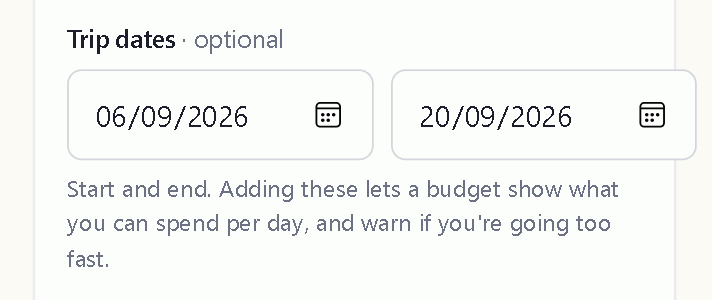
Trip dates — optional. Add them and your budget can show what you've got to spend per day. See Trip dates.
Copy friends from — bring the same people over from an earlier trip in one tap. You can always remove friends or add friends too.
Tap Create Trip and you're done!
You're already in the trip
You're added to the trip automatically, and you don't have to add other friends before you can start adding expenses.
Just you in the trip?
When you don't add any friends, that's a solo trip and Splitiz adjusts to suit. You don't need to do anything differently when using the app. Balances shows a running total of what you've spent instead of who owes who.
Add a second person whenever you like and normal splitting picks up from there. Nothing you've already entered changes. See Solo trips.
Set a default trip
Pick one trip as your default and the Expenses and Balances tabs will open on that trip every time.
You can come back to the trip screen and change the default trip at any time.
If you archive your default trip, choose a new one — otherwise those tabs keep opening on a trip you've finished with.
Changing things later
Tap Edit trip to change any of the above.
One thing to know: you can't remove a currency that expenses are already using.
Home currency and trip currency
Every trip has two currencies.
Home currency is the one you think in — GBP for most people living in the UK.
Trip currency is where you're spending. EUR for Spain, USD for New York. If you're only using Splitiz to track payments in your home country, then set this to the same as your home currency.

What this means day to day
Type in what the receipt says. If dinner was €84, put in €84 — no maths needed.
Splitiz keeps the expense the original currency for good, but can show your balance in either the trip or home currency whenever you want.
All currencies convert through your home currency first — USD → home → EUR — which keeps balances adding up.
New expenses start in the trip currency
You don't have to set the currency each time. It's already right.
Need a different one for a single expense? Just change it on that expense. See More than two currencies.
The rate is locked in when you create an expense
Each expense keeps the exchange rate it was created with, and that rate doesn't change afterwards — even if you change the trip's default rate at a later date.
So what someone owed you last Tuesday stays what they owed you last Tuesday.
You can change the rate on any expense yourself if it wasn't right. See Exchange rates.
Changing a trip's currency later
Tap Edit trip.
Two things to know:
- Expenses you've already added keep their own currency and rate. Changing the trip currency only affects new expenses.
- You can't remove a currency if an expense is using it. The trip screen marks those ones for you.
Not going abroad?
Set the home and trip to the same currency. You won't see any of this - no rates, no conversion, no Converted tab.
Exchange rates
There are two ways to set an exchange rate, depending on whether you're on the free or Pro plan.
The trip rate — everyone
Set it when you create or edit a trip. It fills itself in whenever you pick or change a currency, and you can type over it with your own rate.
Every expense uses this rate automatically.
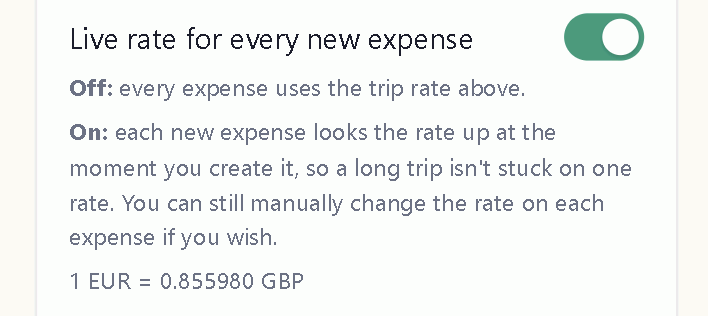
Live rate for every new expense PRO
Every time you create an expense a real time rate lookup is performed, so you never have to worry about making sure the exchange rate is correct.
Off: every expense uses the rate from the trip screen.
On: each new expense looks up the rate as you create it, so a long trip isn't stuck on one rate.
Worth turning on for a fortnight away, where rates can drift a percent or two. Not worth bothering with for a weekend.
No signal? The expense quietly uses the trip rate instead. You'll never be stopped from adding an expense because a rate couldn't be looked up.
Changing currency mid-trip?
No problem. Either change the trip currency under Edit trip so all expenses from then on use the new one, or simply pick a different currency each time you create an expense.
The rate updates to match whichever currency you've picked.
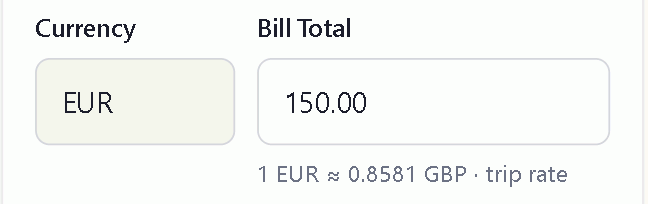
When editing an expense, look under the Bill Total box and you'll see which rate is being used and where it came from — trip rate, your rate, or auto-fetched for this expense.
Using your own rate
Open the expense and edit Exchange rate (snapshot).
Handy when the app's rate isn't the rate you actually got — maybe you have a card fee baked in, or cash changed at an airport desk. Put in the real rate and the balance matches your statement.
Editing an expense never auto-refreshes its rate, even with live rates enabled for new currencies — it keeps the rate it was saved with, unless you manually change the rate or currency.
The rates Splitiz uses are mid-market ones, so your bank's rate will be slightly worse. For splitting a dinner it's pennies. If it matters, type in the rate from your statement.
More than two currencies PRO
Crossing a border? Add a currency for each place you'll spend.
Tap Edit trip → Other currencies, and add them.

How many you can have
| Plan | Currencies per trip |
|---|---|
| Free | 2 (home & trip currency) |
| Pro | 10 (home + trip + 8 additional |
Setting the rates
Each currency gets its own rate against your home currency. So if you set GBP as your home currency, 1 CHF = 0.89 GBP, 1 CZK = 0.034 GBP. The currency rates fill in automatically and you can manually type over any of them.
All currencies convert through your home currency first — CHF → home → CZK — which keeps balances adding up.
Picking one on an expense
Once a trip has a few currencies, they all appear in the dropdown when you add an expense. The trip currency is just the one shown first and automatically used unless you select something different.
Each expense keeps its own currency and rate, so euro lunches, dollar train tickets and koruna beers all sit happily in the same trip.
What you'll see in Balances
Original shows each amount in the currency it was spent in. Maybe you bought a round of beers at the airport before setting off from England in GBP and also paid for lunch in EUR once you arrived in Spain.
Converted converts all balances into a one currency that you choose, so you get a single number. This makes it easier to see what's been spent across the entire trip, no matter where you paid a bill and the currency it was originall paid in.
Removing a currency
Tap Edit trip and remove it.
You can't remove one that expenses are already using — those are marked for you on the trip screen. Change or delete those expenses first before removing the currency.
Trip dates
Optional. Add a start and end date when you create or edit a trip.
What you get
Dates turn your budget from a total into a daily allowance. You'll see:
- What you can spend per day for the days you've got left — "£85 a day for the 4 days left"
- Where you'll end up at the rate you're going — "at this rate you'll finish around £2,400 (120% of budget)"
See Budgets.
Two rules
- Add both or neither — a start date without an end date won't be accepted
- The end date can't be before the start date
Update or clear those dates whenever you like.
An expense dated outside your trip dates is absolutely fine and still counts. Deposits get paid months ahead and the taxi home gets added the next morning — Splitiz doesn't mind.
When to use trip dates
Worth it for a holiday or festival — anything with a fixed length where you don't want to run out of money halfway through and need to budget.
Skip it for a house share or an ongoing tab with a friend as there is not fixed date to budget against.
Adding people to a trip
Open the trip and use Friends in this trip. Type a name, add it. Done.

You're already shown in the friend list as the person who created the trip. TIP! Nobody needs a Splitiz account. You can assign friend names to a trip to allocate expenses but manage the whole trip yourself
Copying people from another trip
When you create a trip, use Copy friends from to bring the same list of people over from an earlier one. Handy when the same four of you go away every year. You can then add or remove friends.
Renaming someone
Tap edit next to their name and change it. Works whether or not they've joined with an invite link, and renaming won't remove anyone from already created expenses.
Removing someone
Tap the remove button next to their name and confirm your choice on the pop up screen.
You can only remove someone if they've got no expenses and aren't in any splits. If they've paid for something or are part of a split, you'll be stopped — removing them would change what everyone else owes.
For someone who did take part but has now left the group, see Leaving a trip instead.
Who can do what
The trip owner — whoever created the trip in Splitiz — adds and removes people, edits the trip and deletes it. They can also edit or delete any expense in the trip, whoever added it.
Everyone else can add expenses, edit and delete only the ones they added, settle up, and set their own budget.
Invite links
Make life easy for yourself! Let everyone see the trip and add their own expenses. Send them an invite link.
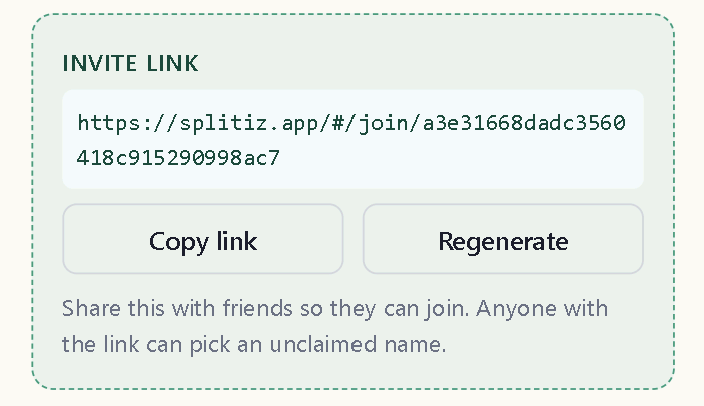
Open the trip, tap Invite, copy and share the link — WhatsApp, message, email, however you like.
What happens when they open it
They pick their name from the list. From then on they see the trip just like you do, and can add expenses themselves.
If they haven't got a Splitiz account they'll be asked to make one first - they just need to enter an email address and create a password. Simple.
Anyone with the link can pick a name, so only send it direcly to the people going on the holiday.
Links last 14 days
After that the link stops working. Whoever opens it is told it's expired and gets a button to ask you for a new one.
To send a fresh link, open the trip and tap Regenerate, then Copy link and send it out again.
Sent it to the wrong person?
The same claim link is sent to everyone in the trip. However, if you accidentally send the link to someone outside the trip, you can regenerate the link from the trip screen. The old links stops working straight away.
Anyone who's already joined stays in the trip — this only stops the link being used again by someone new.
You don't have to invite anyone
You can run a whole trip on your own. Names you've typed are enough for Splitiz to track what everybody owes.
Invites are just so other people can see the trip and add their own expenses. Happy keeping the books yourself and telling people what they owe? That works perfectly.
Claimed and unclaimed names
A name is one of two things:
- Claimed — someone used the link and took that name. They can now see the trip.
- Unclaimed — the name can still be added to splits and will display in balances.
If someone claims the wrong name, the trip owner can unclaim it and ask that person to have another go at claiming their name without having to generate a new claim link.
Budgets PRO
Set yourself a spending limit for a trip and watch a bar fill up as you go.
On the trip screen, tap My budget, enter an amount and pick a currency.

It counts your share, not what you paid
If you put £200 on your card for a dinner for four people, your budget goes up by £50, not £200.
Your budget is private and personal to you. Even in a trip you share, nobody else can see it. Everyone can set their own budget.
Choosing the currency
You can pick your home or trip currency. Everything gets converted into whichever you choose.
If you see a note about unconvertible expenses, it means something was spent in a currency the trip doesn't have a rate for. Add that currency to the trip and it'll start counting. See More than two currencies.
Daily allowance and forecast
Add trip dates and the budget also shows:
- What you can spend per day, while the trip is running — "£85 a day for the 4 days left"
- A warning if you're heading over — "at this rate you'll finish around £2,400 (120% of budget)". Stay under budget and this message stays quiet.

The forcasting messages only show if you look at the budget section while on the trip - if the trip ended on 30th August and today is the 2nd September, you won't see those messages.
If you don't set a start and date you will still get the bar grapsh and the total.
Going over
The bar turns red and the forecast message warns that your going to be over budger. Nothing else happens — no expense gets blocked and nobody else is told. The messaging and charts are for informational purposes only.
Changing or clearing it
Tap My budget and hit the change button to change the amount, or clear it altogether.
Leaving a trip
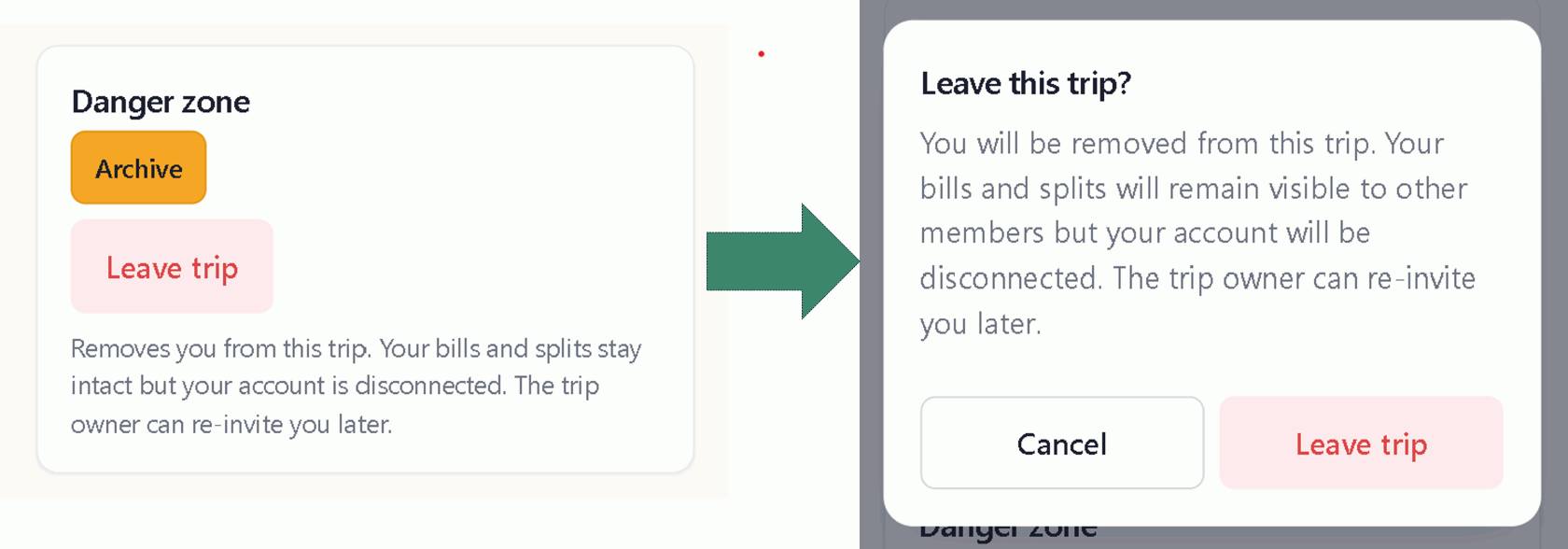
Moved out of the house share? Holiday finished two years ago? Leave the trip and it'll disappear from your list.
Find your own name in Friends in this trip and leave.
What happens
- Your history stays. Every expense you paid for and every split you were in stays exactly as it was, so that everyone else can still see it.
- The trip disappears from your list. You stop seeing it.
- You can come back. The trip owner can send you a new invite link and you can claim your name again.
Leaving doesn't clear what you owe. Settle up first, or your balance stays there for everyone else to see. See Settling up.
Leaving or removing?
| Leaving | Removing | |
|---|---|---|
| Who can do it | Anyone, to themselves | The trip owner, to someone else |
| When it works | Always | Only before they've spent anything |
| Their expenses | Stay exactly as they are | They can't be removed if they have any |
| The name in the list | Stays, marked as left | Gone completely |
| Can they come back? | Yes, with a new invite link | They were never really there |
Remove - if you added a name by mistake.
Leave when you took part in a trip and now you're done and everyone has settled up.
Who sees it disappear
If you own the trip, archiving tidies it away for everyone and removes from their active trip list.
If you're a member, archiving only clears it from your own list. Everyone else carries on as normal. You can unarchive and can bring into your trip list whenever you like.
Nobody can accept an invite to an archived trip — the link says the trip is archived. Unarchive it and the invite link will work again.
If nobody needs it any more, archiving is usually better. It tidies it away for everyone and removes it from the trip list.
Archiving and deleting a trip
Two very different things. One you can undo, one you can't.
Archiving — for a trip that's finished
If you are the trip admin, archiving tidies the trip away without losing anything.
From the trip screen, tap Archive.

What happens:
- It leaves everyone's active list, not just yours
- Its expenses become read-only
- Everything is kept — expenses, splits, balances, receipts, reports
- You can unarchive it any time
Archived trips are still in the Trips tab, listed below the active ones. Open one and unarchive it to bring it back. 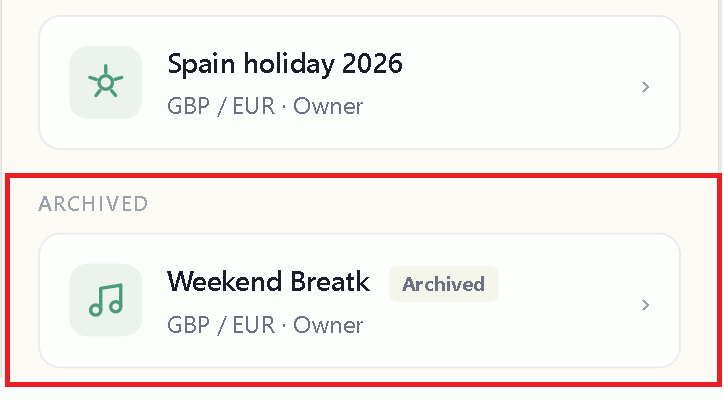
Archiving doesn't settle anything. If people still owe money, those balances are still there when you unarchive.
Archived your default trip? Pick a new default trip, or the Expenses and Balances tabs keep opening on a trip you've finished with.
Deleting — gone for good, for everyone
From the trip screen, under Danger zone.
This isn't "remove this trip from my list". It deletes the trip for every person in it — their expenses, splits, balances and receipts. Someone who entered thirty expenses on your holiday will just find it gone.
There's no undo and no copy anywhere.
Only the trip owner can delete a trip.
Archive instead. It gets you the tidy list you're after, keeps everything, and you can change your mind.
If you're deleting anyway
Export a report first, so you've got a record. Reports stick around after the trip's gone. See Reports.
And if the trip is going to carry on without you, don't delete it, leave it instead — see Leaving a trip.
Solo trips
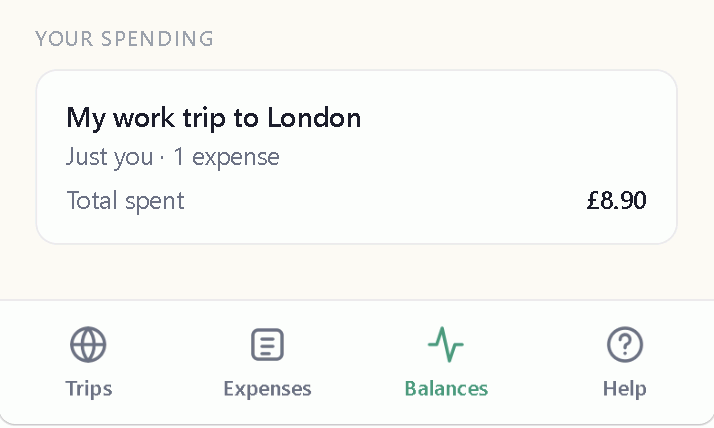
A trip with just you in it. Splitiz adjusts to suit — you get a spending tracker instead of a splitting app. There's nothing to switch on.
Good for a work trip you'll expense later, a holiday on your own, tracking what you actually spend on lunch, or keeping one project's costs separate from another.
What's different
- Balances shows a running total of what you've spent, instead of who owes who
- Contributions are hidden — there's nobody to contribute to
Everything else works exactly the same: expenses, currencies, rates, categories, receipt scanning, itemising, budgets and reports.
Budgets work brilliantly here
Your share of a solo trip is all of it, so a budget is simply "what I'm spending against what I've set".
Add trip dates too and you'll get a daily allowance and a forecast of where you'll end up. See Budgets.
Someone joining you later
Add a second person and splitting starts from there. Everything you've already entered stays as it is — there's nothing to redo.
Starting a holiday on your own and a friend's joining halfway through? Just add them when they arrive.
Where the money went PRO
Open a trip and scroll down. Under where the money went is a card breaking the spending down by category — food, transport, accommodation and — as a bar each, with the amount and the percentage.
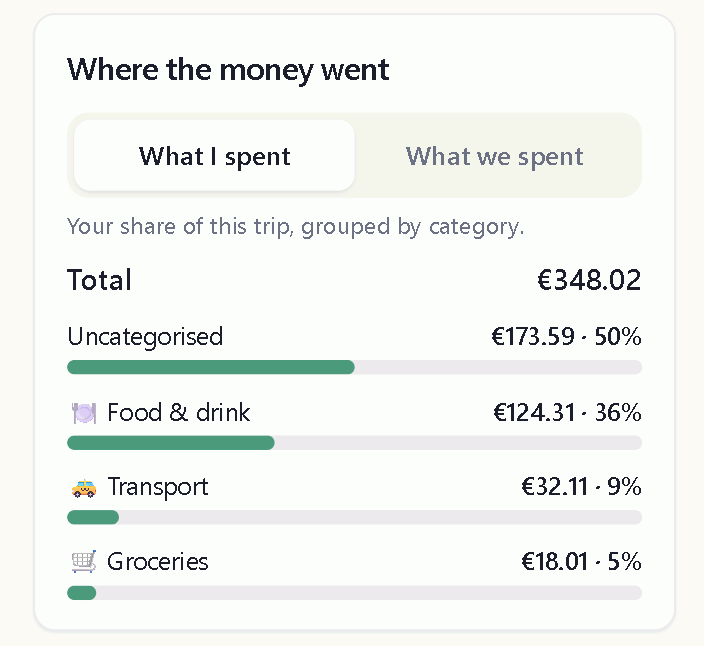
What I spent, and what we spent

Two tabs, because people ask both questions:
- What I spent — your share of the trip. What it actually cost you.
- What we spent — everything the whole group spent, everyone's money together.
They're very different numbers. Your share of a fortnight in Greece might be £600 of a £2,400 trip total.
"What we spent" is the one for "how much did we get through on taxis?" "What I spent" is the one for "can I afford another night out?"
On a solo trip there's only one answer - it's only "what I spent", so there's no toggle shown on screen for "what we spent".
The total
Above the bars, so you get the headline figure without adding up the categories yourself.
Uncategorised
Expenses without a category get their own bar rather than being left out — leaving them out would make every percentage lie.
Give them categories and they move into the right bars. See Categories.
Currency
Everything is converted into your budget's currency. If some expenses are in a currency the trip has no rate for, they can't be converted and you're told how many — add the currency to the trip and they'll start counting. See More than two currencies.
Seeing the expenses themselves
This card is the overview. For the list behind a number, use the Category filter in Expenses — see Finding an expense.